
Keep the whole table
Use the public PDF converter when the full PDF table should become a reviewable Excel workbook.
Open PDF converter
EXTRACT TABLES FROM PDF
Review a full-table conversion or use named fields for the next step.
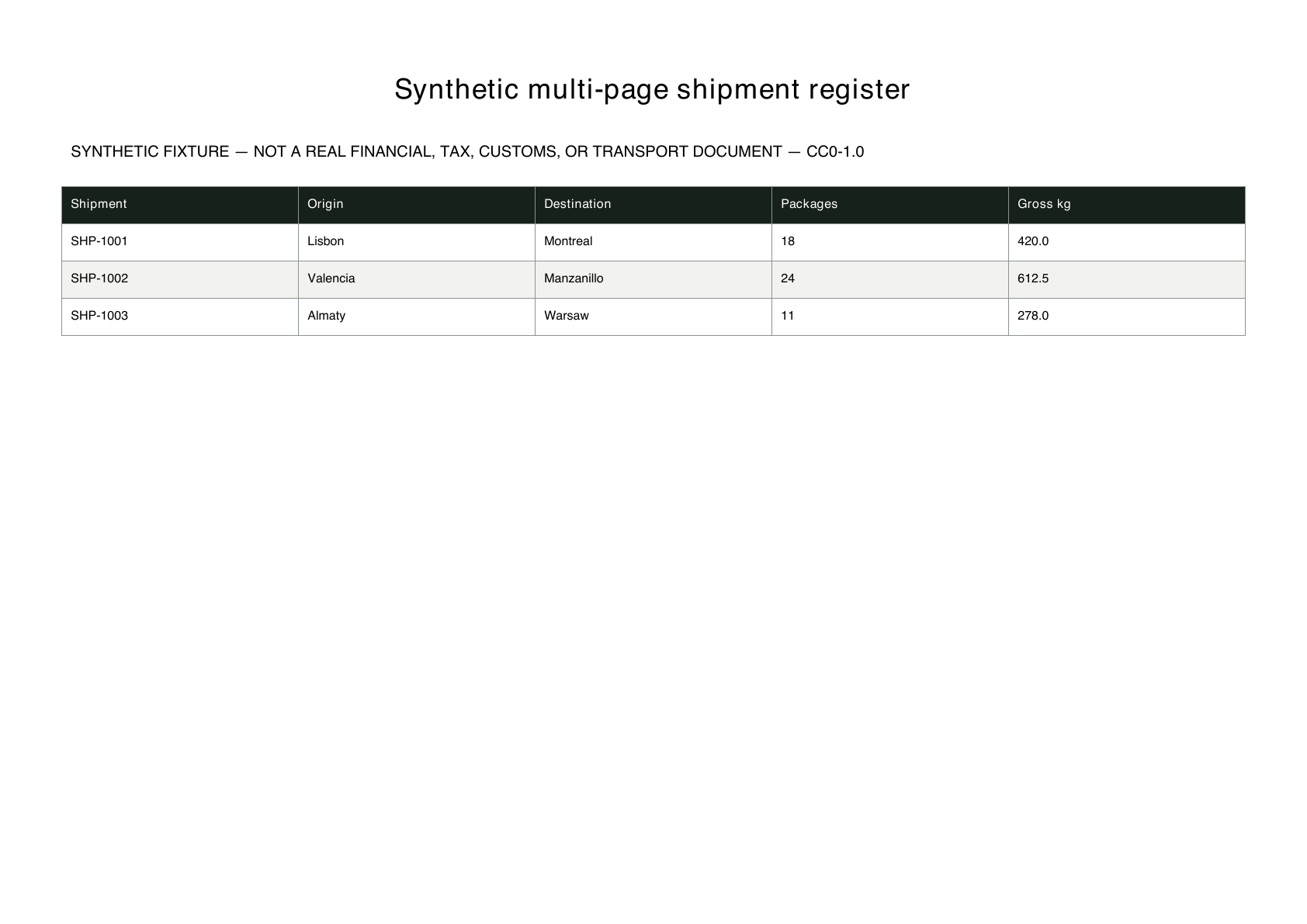
The full table and a smaller set of named fields are different deliverables. The available product routes reflect that difference.
Use the public PDF converter when the full PDF table should become a reviewable Excel workbook.
Open PDF converterUse the signed-in AI workspace when a defined set of business fields is more useful than a full-table workbook.
Open signed-in workspaceCurrent limitation: The current product does not offer a manual box selector.
SAVED TWO-PAGE EVIDENCE
This is a saved benchmark result, not a universal accuracy claim. The outlines document visible source tables for review. They are not product coordinates or a selectable interface.
The visible shipment table is one of two table regions represented by the saved two-page benchmark run.
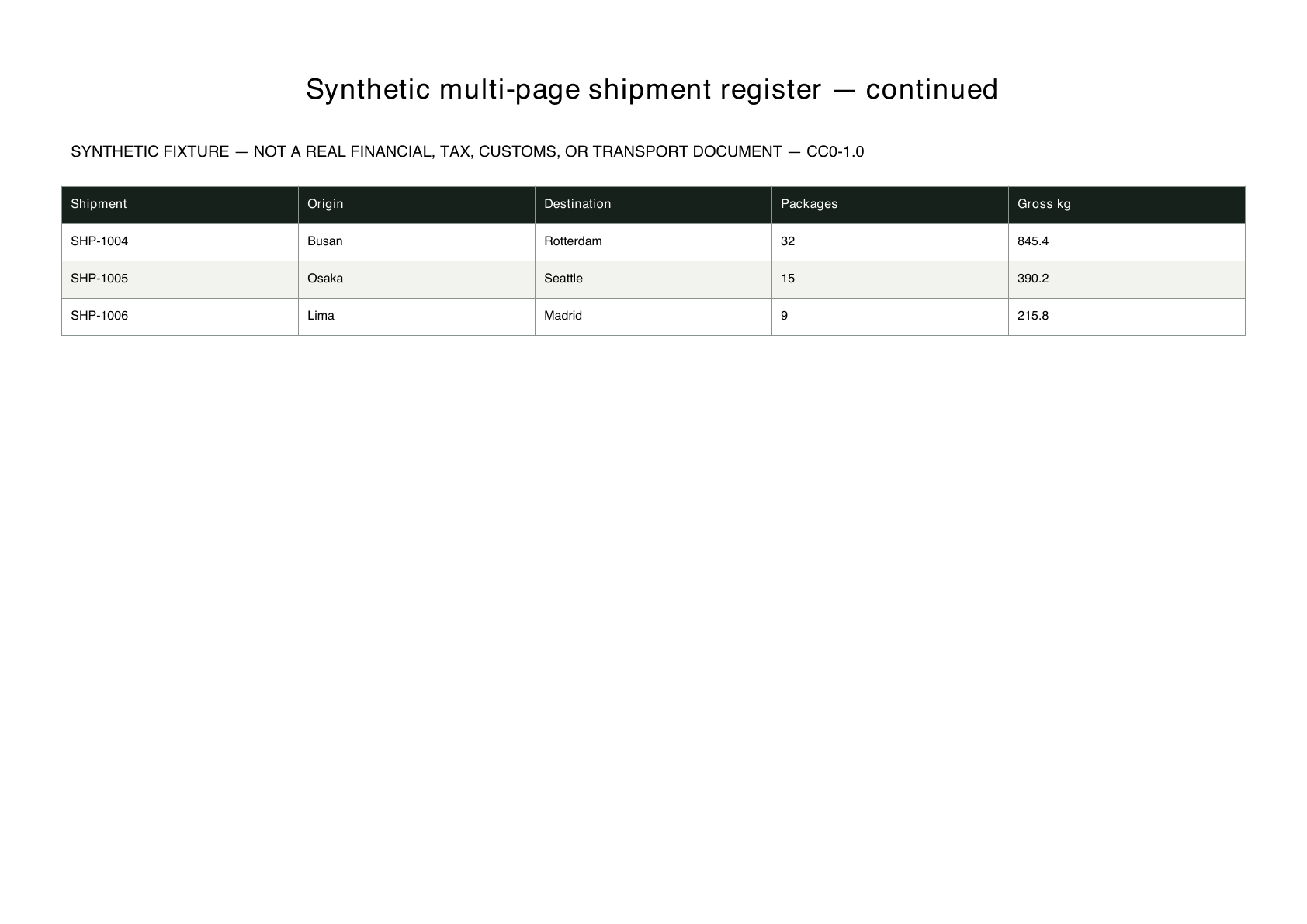
The continuation table is the second represented region. Its repeated header and rows should be reviewed with page one.
A result can be useful without being the final record. Check every table, page boundary, header, and downstream field requirement against the original PDF.
Check that every page, continuation header, and source table you need is present before you compare a workbook.
A repeated header or a page boundary can change how a downstream user reads the resulting workbook.
Open the public PDF converter when the workbook should retain the table rather than reduce it to named fields.
Open the signed-in workspace when a reviewer needs a smaller set of defined business fields from a complex document.
The source is a two-page selectable-text CC0 fixture. It does not establish performance for scans, handwriting, camera perspective, other languages, merged cells, naturally degraded documents, or arbitrary multi-table layouts.
The declared reference workbook is expected data for review. It is not a model output. The saved actual workbook is one dated benchmark artifact and should be compared with the source before use.
No. The current product does not offer a manual box selector. This page documents a review path for a complex PDF, not a new selection control.
The saved benchmark run reported table_count equal to two for this two-page synthetic source. The source has one visible shipment table on each page.
No. It is a saved result for one dated CC0 synthetic fixture. It does not establish performance for other layouts, scans, languages, merged cells, or documents.
Use the public PDF converter when the full table is the output. Use the signed-in AI workspace when named, reviewable fields are the smaller deliverable.
Choose the full-table converter or the signed-in field workflow, then compare each output with its source PDF.